

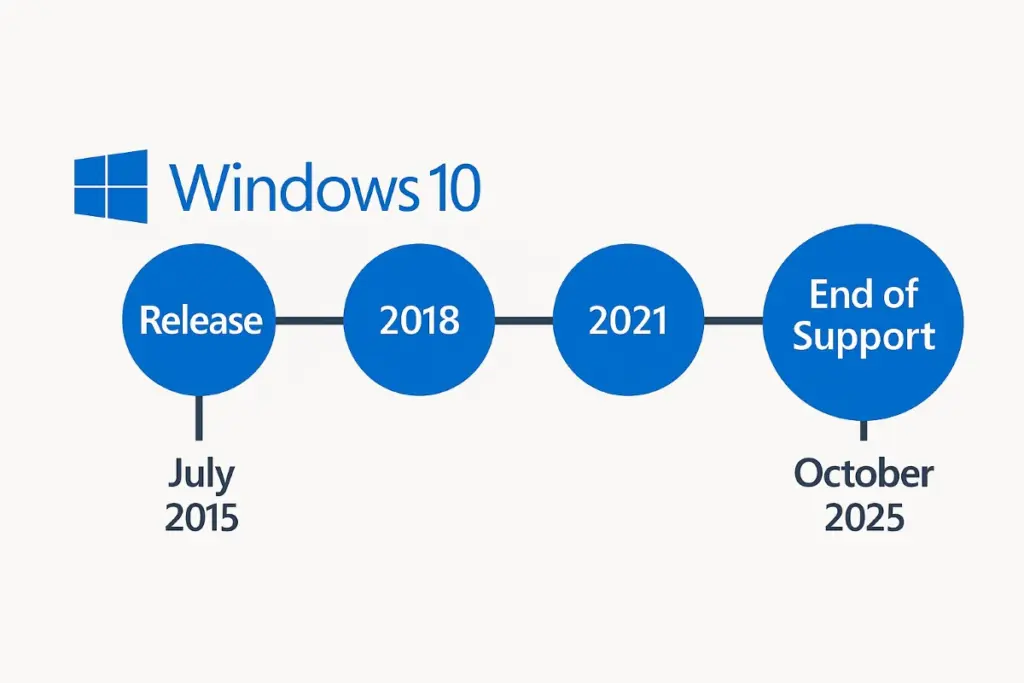
When Microsoft announced that Windows 10 support officially ends on October 14, 2025, it wasn’t just the retirement of another version — it was the quiet conclusion of a digital era.
For almost ten years, Windows 10 has been the operating system that defined personal and professional computing. It ran our first home offices, powered gaming PCs, kept classrooms online, and sat quietly behind the cash registers of small businesses worldwide.
Now, its clock is running out — and the consequences go far beyond nostalgia.
The Inevitable Sunset
Every Microsoft operating system follows a familiar lifecycle: release, adoption, maturity, and sunset. But Windows 10 was supposed to be different.
When it launched in 2015, Microsoft called it “the last version of Windows.” The company promised an “OS as a service” — a platform that would evolve forever through updates instead of version numbers.
That vision held for a while. Windows 10 became the company’s most stable, widely used system ever — a unifying force after the fragmentation of Windows 7, 8, and 8.1. But when Windows 11 arrived in 2021, the “one-Windows” dream quietly disappeared.
Now, with the end-of-support date set for October 2025, the reality is unavoidable: it’s time to move on.
A Massive User Base Still on the Line
Despite Microsoft’s four-year push toward Windows 11, adoption remains slower than expected. Industry data in mid-2025 shows that around 69 percent of Windows PCs still run Windows 10 — a staggering number for an OS nearing its retirement.
That inertia comes from two things: familiarity and hardware limitations.
For many users, Windows 10 “just works.” It’s fast, reliable, and free of the visual clutter that some feel plagues Windows 11. For others, the upgrade path simply isn’t an option — their hardware doesn’t meet the newer security requirements.
In other words, millions of perfectly functional PCs are about to become digital fossils.
What Happens After October 2025
Here’s the reality check:
When official support ends, Windows 10 will no longer receive security updates, bug fixes, or technical assistance from Microsoft.
Your computer will still boot up, and your files won’t vanish overnight. But from that point forward, every month that passes increases your exposure to:
- Unpatched vulnerabilities that hackers can exploit.
- Compatibility issues with newer software and peripherals.
- Compliance risks for businesses subject to data-security regulations.
Microsoft will introduce an Extended Security Update (ESU) program for those unable to upgrade immediately.
The ESU system — first used during the Windows 7 phase-out — provides critical patches for a fee:
- Individual users: A paid subscription (estimated $50–$200 USD per year, depending on edition).
- Organizations: Volume licensing options through Microsoft 365, with pricing scaled by device count.
It’s a short-term bridge, not a long-term solution. And like Windows 7 before it, ESU pricing is likely to increase annually.
So yes, you can keep using Windows 10 past 2025 — but you’ll be paying to stand still.
Why Many PCs Can’t Upgrade to Windows 11
The frustration surrounding this transition largely stems from Windows 11’s stricter hardware requirements.
To install Windows 11 officially, a PC must include:
- TPM 2.0 (Trusted Platform Module) for encryption and secure boot.
- UEFI firmware with Secure Boot enabled.
- A relatively modern CPU (8th Gen Intel or newer, or AMD Ryzen 2000 series +).
Those security-centric requirements make sense in Microsoft’s AI-driven, cloud-connected vision of computing. But they also lock out millions of perfectly usable devices sold between 2015 and 2018.
Users have found workarounds to bypass these checks — editing registry keys or installing from modified ISOs — but Microsoft warns such systems may lose access to future updates or even break entirely.
The irony? A six-year-old laptop that still runs fast, has SSD storage, and gets great battery life is now deemed obsolete simply because it lacks a small chip soldered onto newer motherboards.
The Real Cost of Staying Behind
The biggest danger in ignoring the deadline isn’t performance — it’s security.
Unpatched systems quickly become prime targets for ransomware, zero-day exploits, and data theft. Once official patches stop arriving, every newly discovered vulnerability remains permanently open.
For home users, that might mean compromised passwords or identity theft. For businesses, the consequences multiply:
- Loss of compliance certifications (ISO 27001, NIST 800-53, GDPR, HIPAA).
- Failed audits or contract breaches due to unsupported software.
- Insurance issues, since cyber-liability coverage often requires up-to-date systems.
And beyond security, there’s the creeping friction of software compatibility.
Modern browsers, office suites, and drivers will gradually stop supporting Windows 10. Even antivirus vendors will eventually drop updates for it.
By 2026, the OS won’t just be vulnerable — it’ll be inconvenient.
What You Can (and Should) Do Now
The good news? There’s still time to act — and plenty of ways to stay ahead.
1. Check Your PC’s Compatibility
Download Microsoft’s PC Health Check tool or visit their Windows 11 site: Microsoft.com. It’ll tell you instantly whether your hardware qualifies and what component (if any) blocks the upgrade.
If your system fails due to TPM 2.0, check your BIOS — many machines include it but ship with the feature disabled by default.
2. Consider a Hardware Refresh
If your system truly can’t upgrade, start planning for replacement now — not next fall.
Today’s hardware is far more efficient:
- Battery life has nearly doubled since 2018.
- Solid-state storage is cheaper and faster.
- Modern CPUs support built-in AI acceleration for features like Windows Copilot and Recall.
Think of it less as forced obsolescence and more as modernization. A new system ensures compatibility, performance, and security for years ahead.
3. Backup and Prepare for Migration
Use cloud storage (OneDrive, Google Drive, Dropbox) or an external SSD to secure your important files.
If upgrading in place, do a clean install instead of layering updates — it reduces corruption risk and clears out years of digital clutter.
4. Evaluate Alternatives
Not ready to buy new hardware? You still have options:
- Chromebooks: Great for light workloads, study, and web-based workflows.
- Linux distributions: Ubuntu, Mint, or Pop!_OS run smoothly on older PCs and are completely free.
- Cloud PCs: Services like Windows 365 or Shadow PC stream a full desktop experience from the cloud to any device.
The goal isn’t necessarily to abandon Windows — it’s to keep your computing environment secure and functional.
The Bigger Picture: A New Computing Era
The end of Windows 10 is more than a support milestone; it’s part of Microsoft’s larger shift toward AI-powered computing.
Windows 11 isn’t just a visual redesign — it’s an architectural pivot. The OS now integrates with Copilot, Recall, and AI-accelerated subsystems that rely on neural processing units (NPUs) inside modern CPUs.
These changes reflect how Microsoft envisions the future PC:
- Smarter, more context-aware systems that predict your needs.
- Built-in privacy controls to manage on-device AI inference.
- Tighter synchronization between Windows, Azure Cloud, and Microsoft 365.
That future requires stronger hardware baselines — hence the TPM 2.0 and Secure Boot mandates. It’s not just about locking out old devices; it’s about ensuring that future Windows features can run safely and efficiently at the edge.
From a technical standpoint, this makes sense. From a user standpoint, it feels like a hard reset — especially for those who invested in capable PCs not so long ago.
Enterprise Impact: The Corporate Countdown
For organizations, the Windows 10 sunset is a logistical challenge.
Large enterprises can’t simply “upgrade overnight.” They manage fleets of thousands of endpoints tied to legacy software, compliance frameworks, and user dependencies.
CIOs and IT directors face complex questions:
- Which devices qualify for in-place upgrades?
- What applications break under Windows 11’s tighter security model?
- How to budget for ESU coverage while transitioning infrastructure?
The typical strategy will be hybrid: upgrade what’s possible, pay ESU for the rest, and retire non-compliant machines gradually.
Analysts predict that Windows 10 ESU revenue could surpass $1 billion annually by 2026 — proof of how slow large migrations can be.
But forward-looking companies are seizing this moment to modernize:
- Deploying Zero Trust security frameworks.
- Shifting to Microsoft 365 Cloud PC models.
- Standardizing on newer ARM-based laptops for better efficiency.
For IT leaders, Windows 10’s end is less a crisis than a catalyst — an excuse to clean house and future-proof infrastructure.
Cultural Shift: Saying Goodbye to Familiarity
There’s an emotional layer to this transition too.
Windows 10 became the “default backdrop” for the digital lives of a generation. It was the OS of remote learning during COVID, of indie game development, of millions of home offices and small businesses.
Its clean Start Menu, taskbar simplicity, and steady reliability made it feel like a trusted tool, not a moving target.
Windows 11, with its rounded corners, centered icons, and AI widgets, represents something different — sleeker, but more curated. More connected, but also more controlled.
The shift echoes a broader tech reality: our devices are no longer isolated machines; they’re nodes in an intelligent network.
Saying goodbye to Windows 10 is saying goodbye to that older idea of the “personal computer” — one that was fully ours to customize, modify, and master.
Final Thoughts: Moving Forward, Not Letting Go
The end of Windows 10 is both technical and symbolic.
Technically, it’s the end of updates, patches, and guaranteed safety. Symbolically, it’s the close of an era defined by independence, familiarity, and control.
But change isn’t loss — it’s evolution.
Upgrading to Windows 11 (or exploring alternatives) isn’t just about compliance; it’s about embracing a platform built for the next decade — one that integrates security, AI, and cloud seamlessly.
For everyday users, that might mean a smoother interface and smarter productivity.
For businesses, it means stronger defenses and unified management.
For Microsoft, it means finally aligning its ecosystem with its future vision.
Windows 10 served us well. It was stable, efficient, and deeply human in its simplicity. But technology doesn’t stand still — and neither should we.
October 14, 2025, will mark the end of Windows 10 support, but not the end of progress.
The question isn’t whether your PC will keep running — it’s whether you’ll keep moving forward with it.
Because when the update lights go dark, the digital world will keep going — with or without Windows 10.




Reader perspectives, questions, and reactions.
No comments yet. Start the conversation.
Comments are closed for this article.